Circle Crop Image

Create a clean round photo with a transparent background and an optional border.

Circle
100%

Drop an image here, or paste from your clipboard.

Your image stays on your device.

A proper circle, not a square with white corners

The editor clips the final pixels into a true circle. Choose transparent PNG for profile photos, logos and team directories, or add a solid background when the destination does not accept transparency.

The crop is rendered from the original image at 128, 256, 512 or 1024 pixels. Moving the photo changes the result immediately, so you can keep eyes and facial features inside a comfortable avatar-safe area.

Round avatar crop of a woman near a mountain lake

Control the edge

A transparent edge is best for profile images that need to sit on different backgrounds. A colored edge can help a team avatar stand out in a directory, presentation or community list.

Transparent or solid background

Keep transparent PNG, choose off white, graphite or terracotta, then select the size you need.

Adjustable border

Set the border from 0 to 32 pixels. Border thickness is applied to the final output, so its appearance remains predictable.

Circle crop settings for common uses

The right size and edge treatment depend on where the round image will appear. Start with the destination’s published requirement when one exists, then keep a larger copy for future reuse.

Profile photos and avatars

A 512×512 PNG is a practical starting point for most profile images. Center the eyes slightly above the middle, leave space around hair and shoulders, and remember that some apps add their own ring or status badge over the edge.

Team and staff directories

Use one output size and a consistent head-and-shoulders composition across the group. A subtle border can separate portraits from mixed page backgrounds, while a transparent edge lets each avatar sit naturally inside different layouts.

Logos and simple graphics

Choose PNG so transparent corners remain clean. Keep small lettering and thin marks away from the circular boundary, because a tight crop can make a logo look cramped or remove details that were designed for a square canvas.

High-resolution reuse

Export 1024×1024 only when the original has enough detail and you expect to reuse the image at larger sizes. You can always make a smaller copy later, but enlarging a low-resolution avatar usually makes edges and facial details softer.
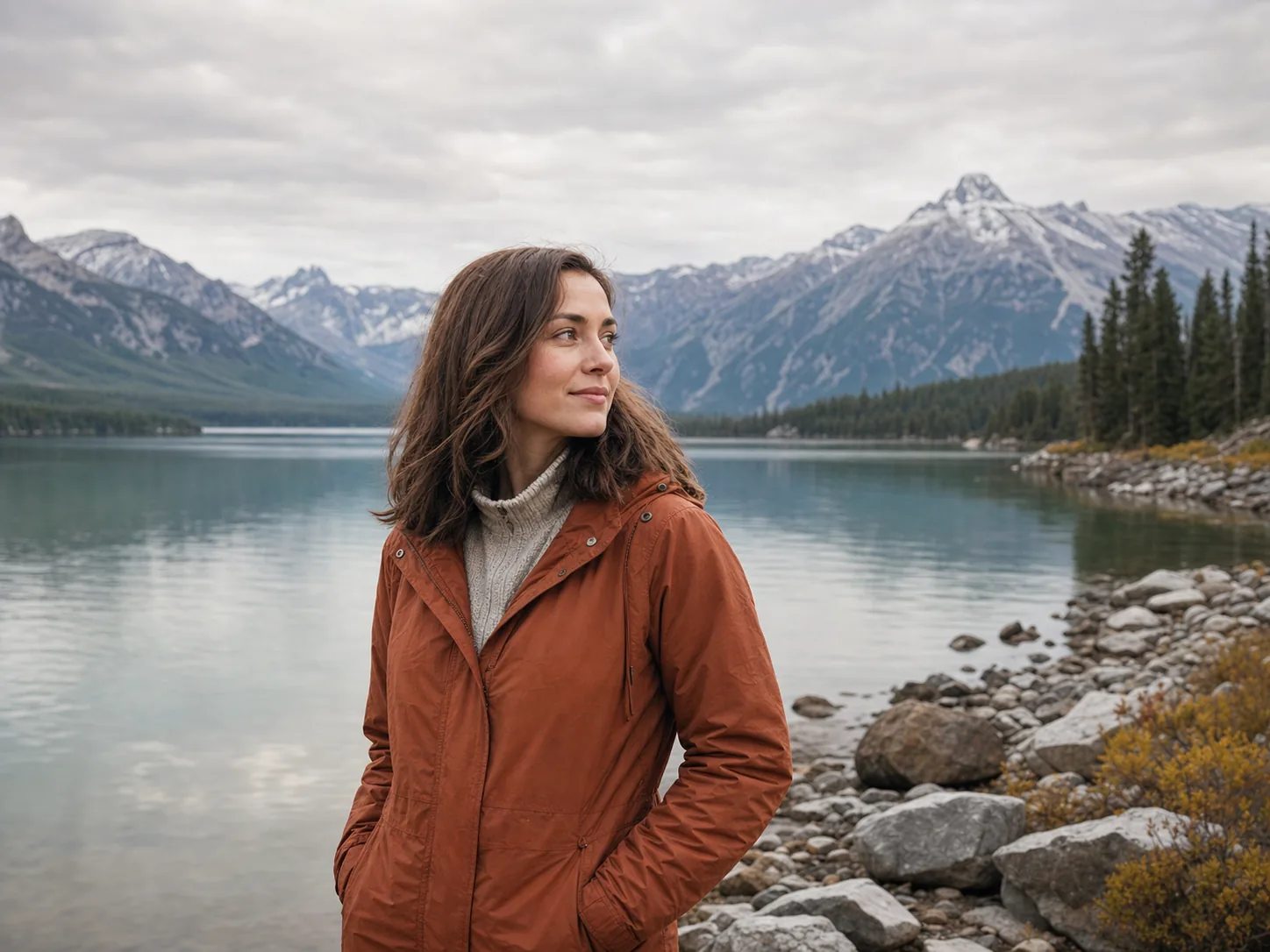
How to keep a face centered in a round frame

Begin with a little more space than you think you need. Move the image until both eyes sit comfortably inside the inner area, then zoom in gradually. Check hair, ears, glasses and shoulders against the circular edge instead of looking only at the center of the face.

A circle removes more from the corners than a square crop, so a composition that looks balanced in a rectangular preview can feel too tight when clipped. If the avatar will be displayed very small, keep the face clear and avoid a busy background. Download the result and view it at its real display size before replacing an important account or directory photo.

Circle crop image questions

How do I crop an image into a circle?

Choose an image, move and zoom it inside the round frame, select an output size, and download the result. Use PNG when you need transparent corners or choose a background color when the destination requires a solid square canvas.

Why should I use PNG for a round photo?

PNG supports transparency. A digital image file still has a rectangular canvas, so transparency hides the pixels outside the circle. JPG cannot keep transparent corners and fills them with a solid background instead.

Can I add a border around the circle?

Yes. Adjust the border from 0 to 32 pixels and choose its color before downloading. The border is rendered at the selected output resolution, which keeps the edge predictable at every preset size.

What size is best for an avatar?

512×512 is a useful general-purpose avatar size. Choose 256×256 for a small directory icon or 1024×1024 when you want a larger reusable master. Check the destination if it publishes a specific minimum size.

Can I make a circle crop on my phone?

Yes. The editor adapts to narrow screens and supports touch positioning. Use the zoom controls for a tighter crop, keep the subject away from the circular edge, and preview the result before downloading.

Will the circle crop reduce photo quality?

The tool renders the selected area from the original image at the output size you choose. Avoid enlarging a small source to 1024×1024, because increasing the pixel count cannot recreate detail that is not present in the original.

Need matching round photos for a whole team? Crop multiple images with one shared size.