Portraits
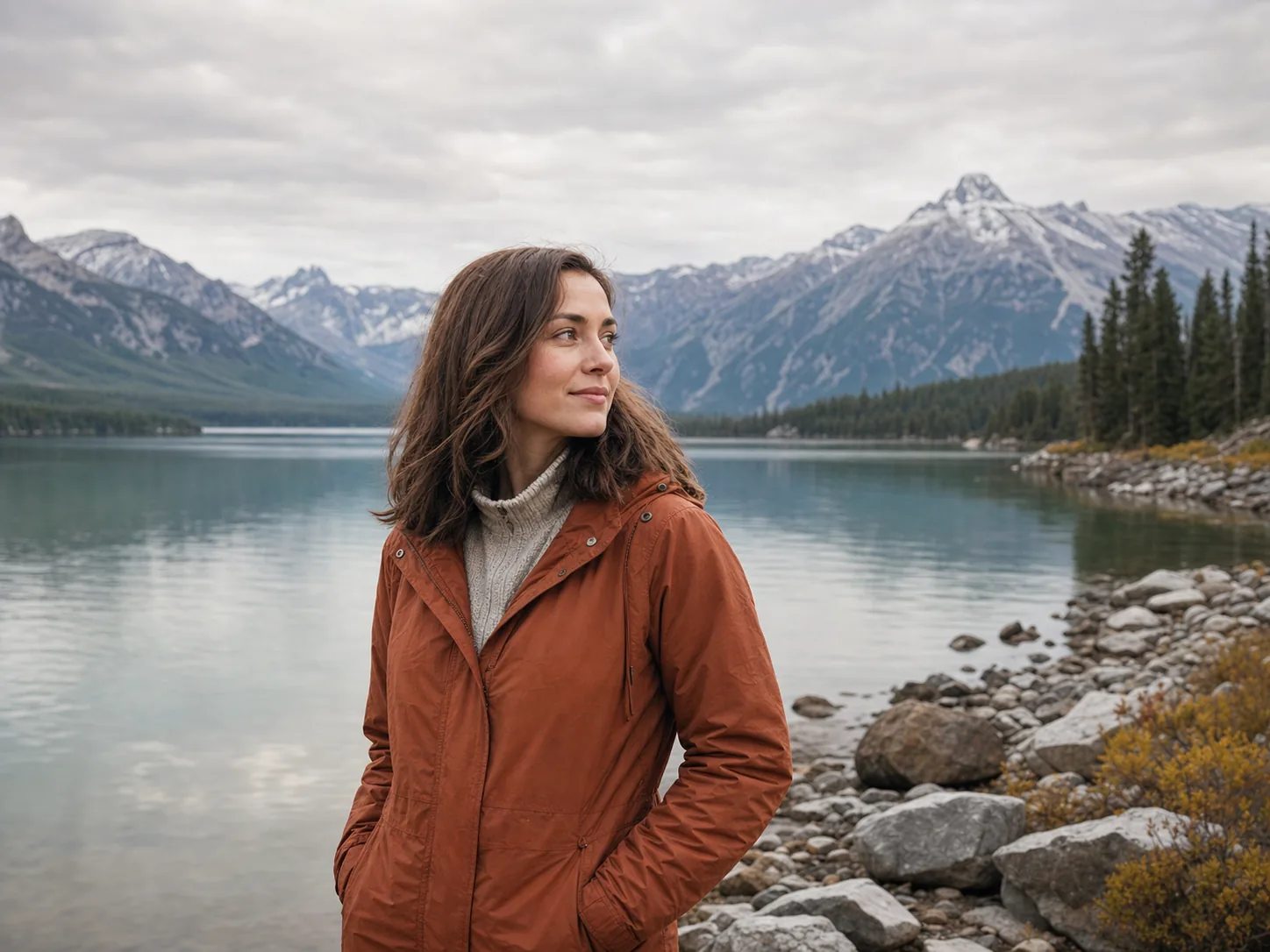
Bring attention to the face while preserving a natural amount of space around the head and shoulders. A tighter crop can feel intentional, but avoid placing eyes too close to an edge.
 →
→Crop a photo by ratio, shape or exact size, then export JPG, PNG or WebP. This private photo cropper processes your image on your device.
Drop an image here, or paste from your clipboard.
Your image stays on your device.Set the composition once, then export the same photo for a profile, post or banner. Each version is rendered from the original image—not from a smaller preview—so a second size does not inherit quality loss from the first.
Keep the subject in place while you compare square, portrait and wide outputs. This is useful when one photo needs to work across several platforms without repeating the entire crop.
You do not need editing experience. The workflow stays on one page, and the preview shows which part of the original photo will remain in the final file.
Select a file, drop one onto the workbench, paste a screenshot or try the built-in sample. A clear, high-resolution original gives you more room to crop.
Pick an aspect ratio, move and zoom the image, rotate if needed, and enter exact output dimensions. The photo keeps its natural proportions instead of being stretched.
Check the subject and edges, select JPG, PNG or WebP, and choose a quality setting. The finished image downloads directly to your device.
Your photo is decoded and edited inside your browser. It is not sent to PhotoCropper for image processing, and the crop tool does not collect the filename or image pixels.
Local processing is especially useful for family pictures, client drafts, product shots and other images you would rather not upload to an editing service. Close or refresh the page when you are finished to clear the editor session.
A useful crop is not only a preset. It should guide attention without cutting through important details. Leave comfortable space around faces, preserve hands and hair when they matter, and remove distracting margins around products.
Bring attention to the face while preserving a natural amount of space around the head and shoulders. A tighter crop can feel intentional, but avoid placing eyes too close to an edge.
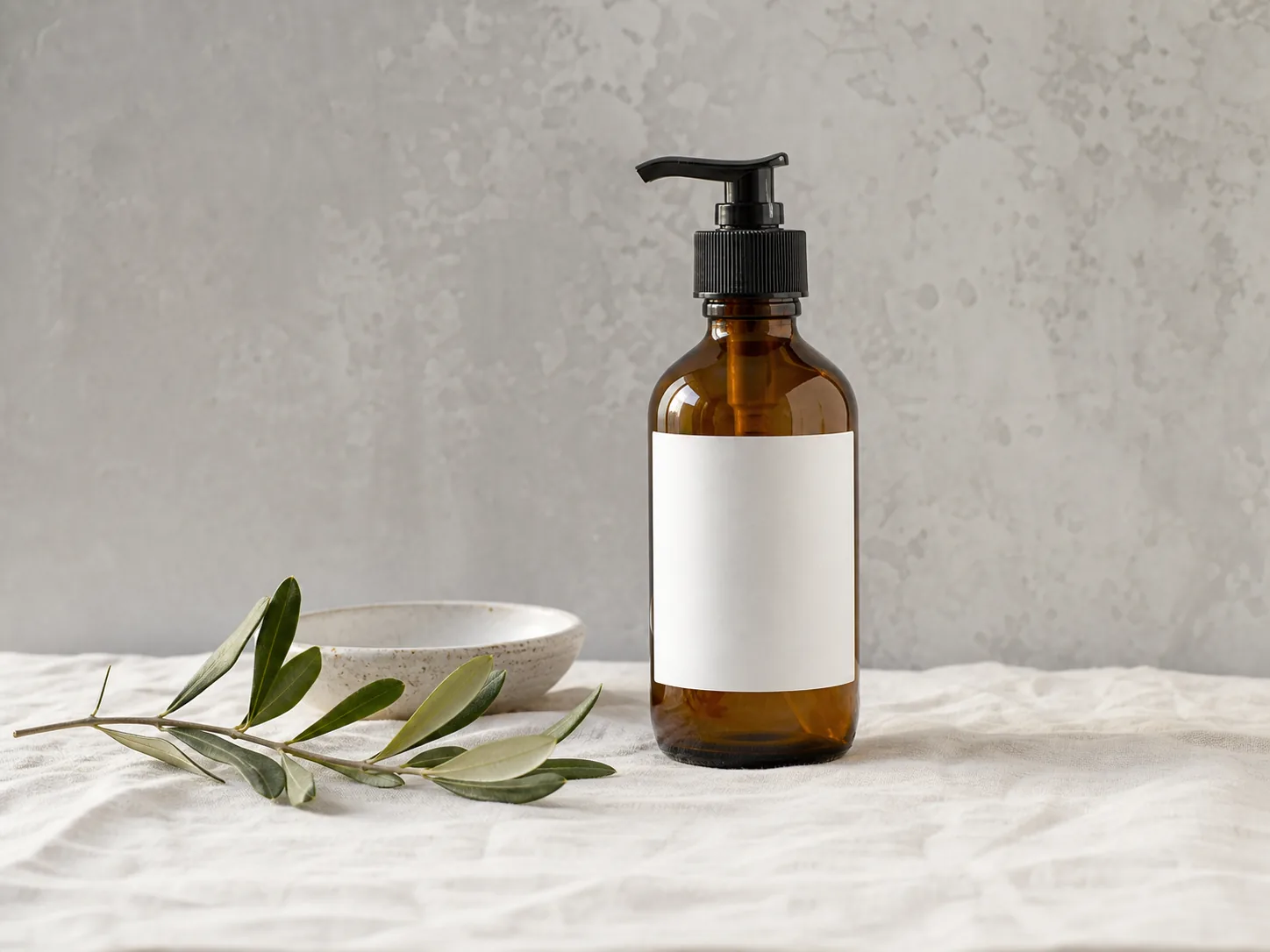
→Remove distracting margins and keep the object centered for shops, catalogs and marketplaces. Leave consistent breathing room so a group of product tiles looks balanced.
 →
→Different destinations ask for different shapes, sizes and file types. The online photo cropper combines the controls most people need in a focused workspace, with no account setup between choosing a picture and saving the result.
Turn a landscape photo into a square avatar, a 4:5 portrait post or a 16:9 cover. Use the grid to keep a face away from interface overlays, then add another output when the same image must fit more than one placement.
For a round avatar, open the circle crop tool to preview the actual circular edge and export a transparent PNG.
Crop away uneven table space, center the product and give each listing a consistent frame. Exact dimensions help create a cleaner catalog because every thumbnail occupies the same area, even when the original photos came from different cameras.
Keep a small margin around the object so it does not feel cramped, and avoid enlarging a low-resolution source beyond its natural size.
Prepare a wide hero image, article thumbnail or newsletter banner without opening a large desktop editor. A fixed aspect ratio keeps repeat graphics consistent, while WebP can reduce file size for modern websites when the destination supports it.
Export each requested size from the original photo rather than resizing an already compressed copy.
When a portal asks for a specific width and height, enter those pixel values before positioning the image. This helps with ID-style headshots, application photos, property listings and marketplace uploads that reject files with the wrong dimensions.
Always check whether the destination also has rules for background color, file size or image content; cropping alone cannot satisfy those separate requirements.
The best settings depend on where the image will appear. Start with the destination’s required ratio or pixel dimensions, then position the subject. If there is no published requirement, choose a ratio that matches the layout and export near the size at which people will view it.
The photo cropper never stretches the source to force a new shape. It removes pixels outside the crop frame and renders the selected area at your output size. That keeps circles round, faces natural and products correctly proportioned.
An aspect ratio controls shape: 1:1 is square, 4:5 is portrait and 16:9 is wide. Exact pixels control the final resolution, such as 1200 × 800. Use both when a platform specifies shape and size; use Free when you only want to trim an edge.
JPG is a practical choice for most photographs and usually creates a small file. PNG supports transparency and crisp edges but can be larger. WebP often balances quality and file size for the web. Choose the format accepted by the place where you will upload the result.
Begin with the largest clean original available. Avoid scaling a tiny crop to a much larger output, because software cannot recreate missing detail. Preview at 100%, use a sensible quality value and compare the downloaded file before deleting the original.
Use a dedicated workflow when you need a true circle, the same crop across a group of files, or strict output dimensions with padding controls.
Create round profile images with a transparent background, an optional border and avatar-safe sizing.
Try circle crop →These answers cover the most common privacy, format, sizing and quality questions. Try the built-in sample first if you want to learn the controls without opening your own image.
Yes. The core photo cropper is free, requires no account and adds no watermark. You can choose a file, crop it and download the result without signing up.
No image-processing server is used. Your browser reads, crops and exports the selected image locally on your device. Normal website requests still load the page, but the image you open in the editor is not sent to PhotoCropper for processing.
JPEG, PNG and WebP are supported reliably. AVIF works when your browser can decode it. Animated GIFs and HEIC are not advertised as supported in this release, so convert those files before cropping.
Yes. Enter the required width and height, then position the crop before exporting. For workflows that need crop, contain and padding controls, use the dedicated exact-size tool.
Yes. Add another output size and the photo cropper renders every version from the original image. When there is more than one output, PhotoCropper packages the files into a ZIP without sending the image to a server.
Cropping removes pixels outside the frame but does not need to blur the pixels you keep. Avoid enlarging a small source, choose an output size suitable for its destination and use a high quality setting when exporting JPEG or WebP.
Use 1:1 for a square avatar or product tile, 4:5 for a portrait-oriented social post, 16:9 for a wide banner or video cover, and Free when no fixed proportion is required. Always check the destination’s current specifications before publishing.
Yes. The editor rearranges for touch screens, keeps the canvas large and places the download control near the bottom. For precise positioning, pinch or use the zoom controls and preview the full crop before downloading.
Still have a question? Contact PhotoCropper.